- OpenClaw is an open agent
- It works as AI assistant for you
- on your local machine
- You can interact with it through chat apps like Telegram, WhatsApp
Tools Used in This Tutorial
For this tutorial, I used the following setup:
-
Raspberry Pi 4
(You can use any other hardware if you prefer.) -
Debian GNU/Linux 12
(Other Linux distributions will work as well.) -
OpenClaw [1]
-
Telegram
Note: I also wrote another guide where I explain how to set up Ubuntu Server on a Raspberry Pi. You can check it here:
https://amaharjan.de/setup-ubuntu-server-on-raspberry-pi/
Initial Setup
1. OS Update
Before starting, make sure your system is up to date.
$ sudo apt -y update$ sudo apt -y upgrade2. Install OpenClaw
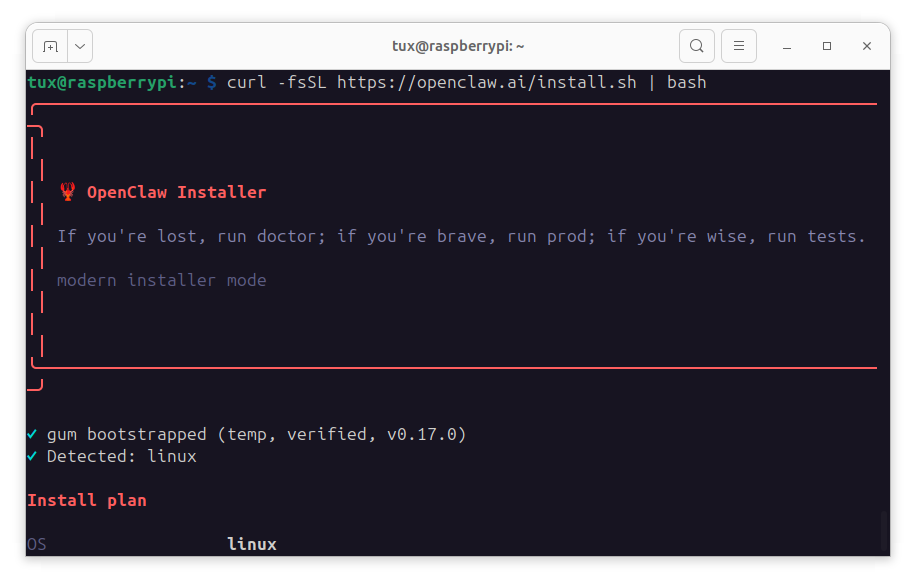
$ curl -fsSL https://openclaw.ai/install.sh | bashThis will run OpenClaw installation (shell script).
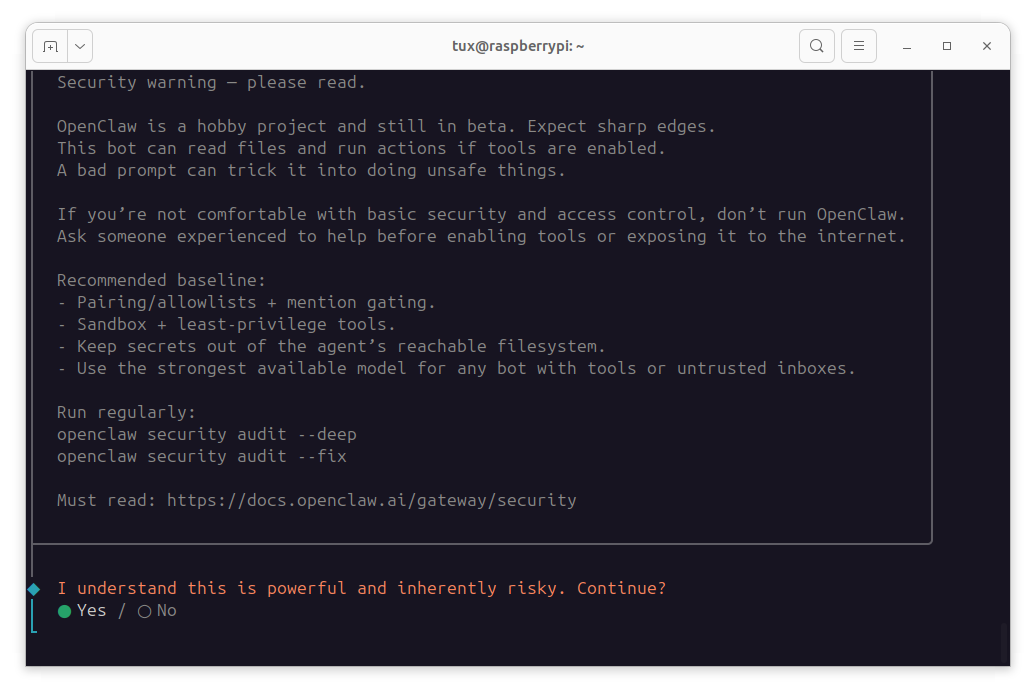
Accept security warning.
I am using OpenAI Codex:
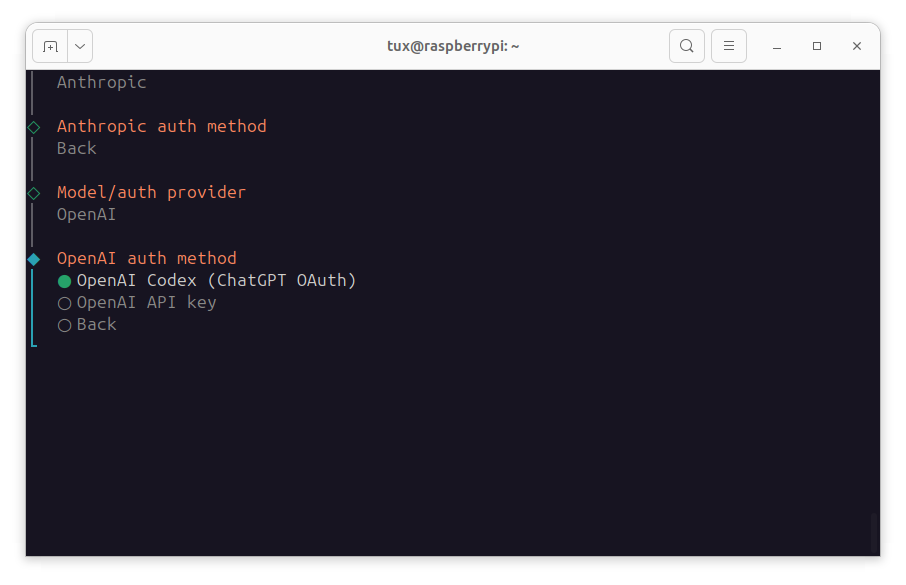
Now, the next will generate OAuth login URL, you will need to open this URL on your local browser.
This will generate redirect URL. Paste this into the setup.

Now, I am choosing openai-codex as my Default model
It will look like this:
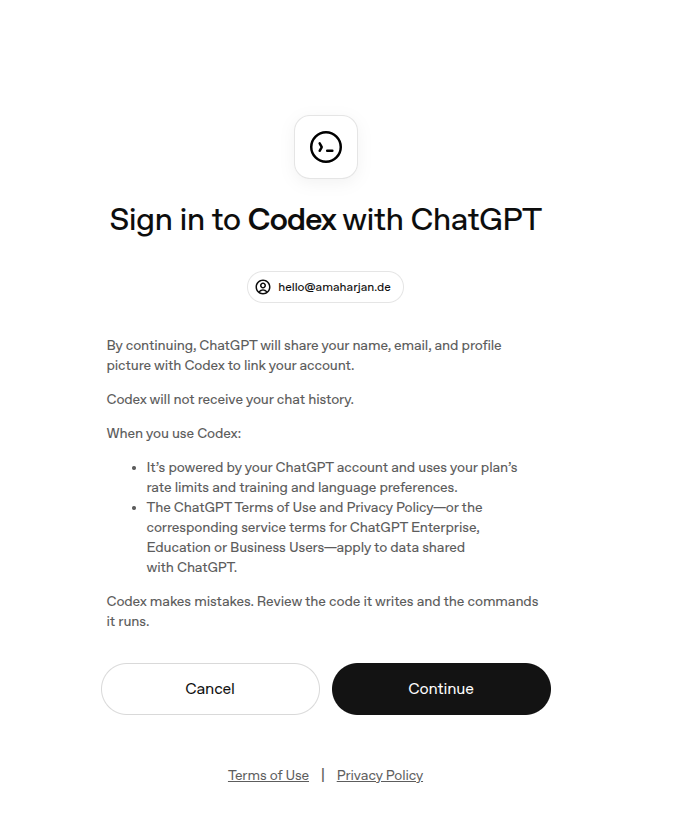
Click continue.
Telegram Setup
Select Telegram (Bot API)
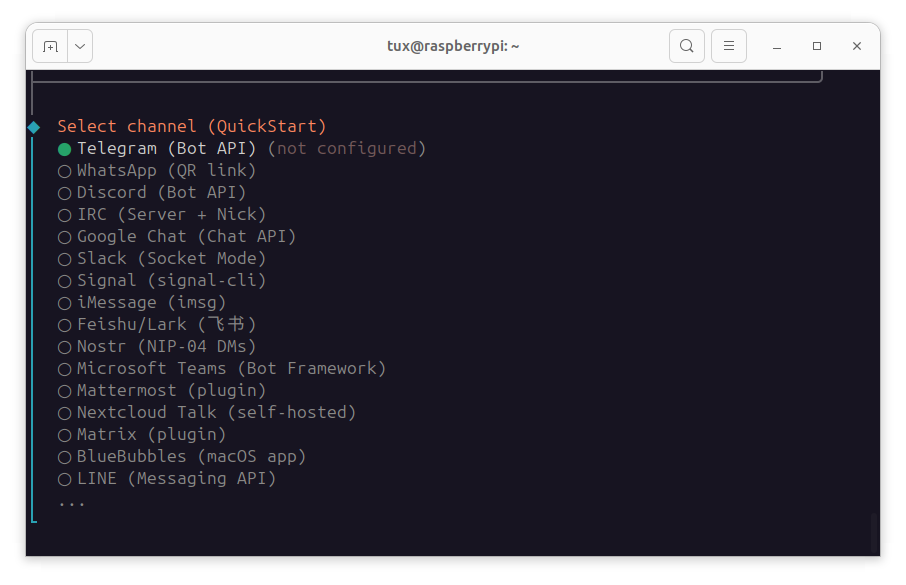
Now, follow the instructions below and paste Telegram bot token
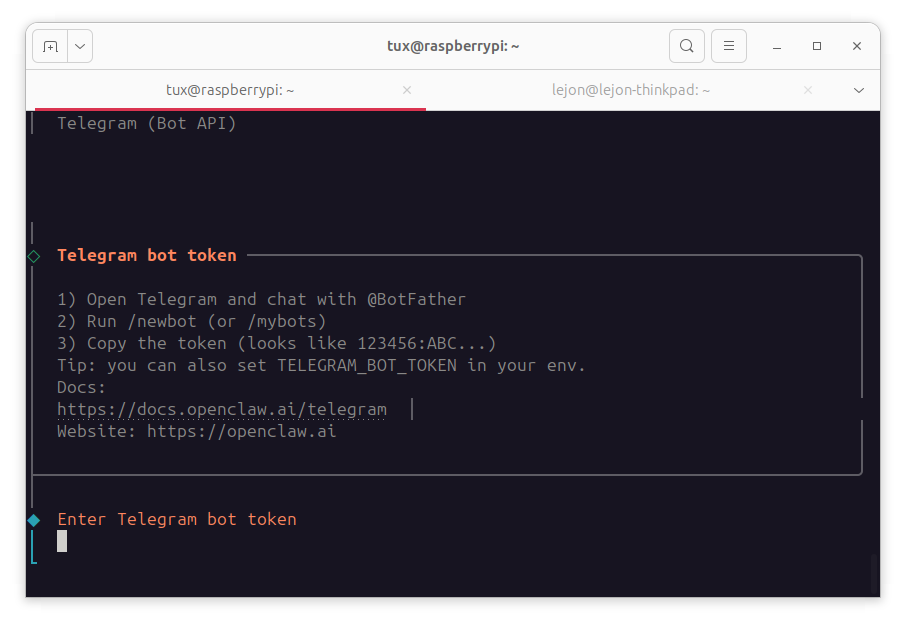
For this process you need to open your Telegram
- Then search @BotFather
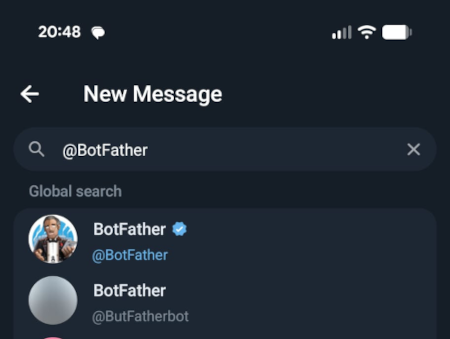
- Run /newbot

- You have to provide a
new bot name - Then, you provide
usernamefor the bot
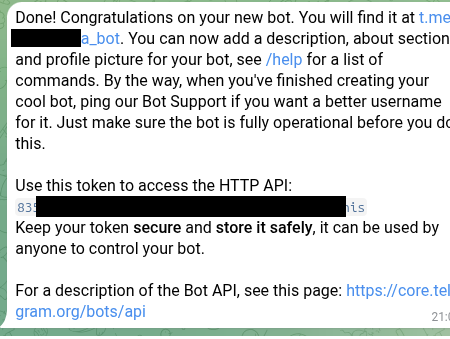
- Copy the token. And press enter.
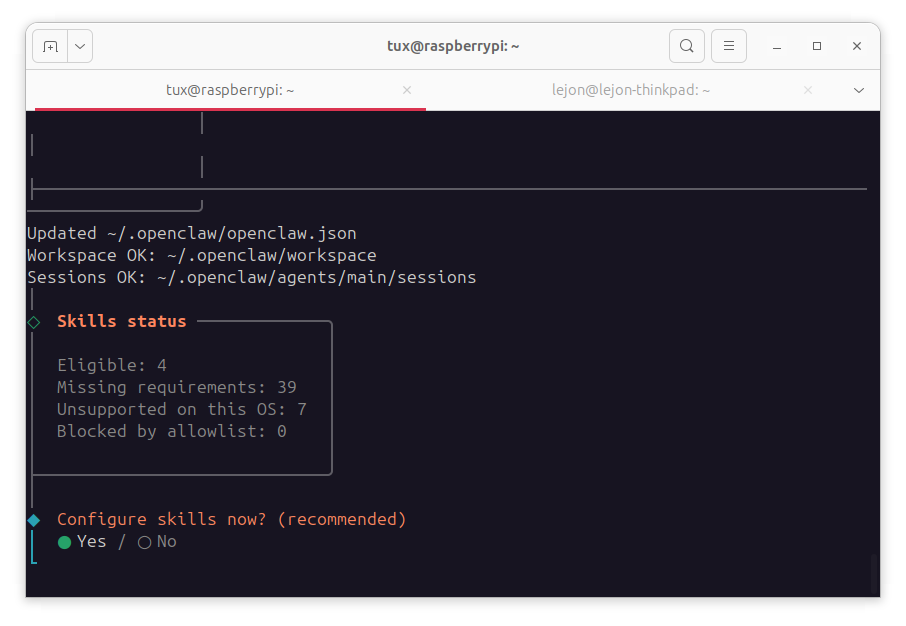
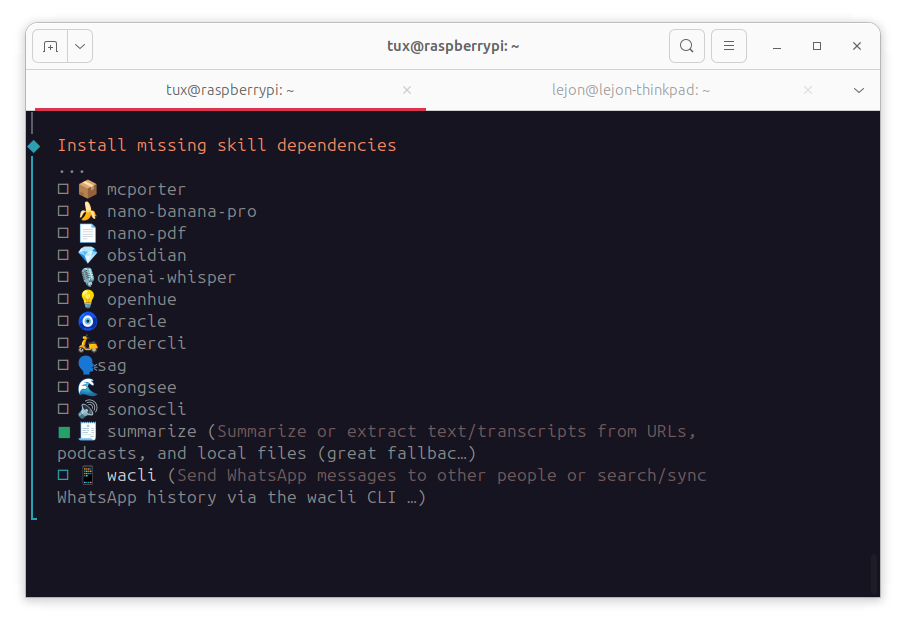
You can start selecting Skills:
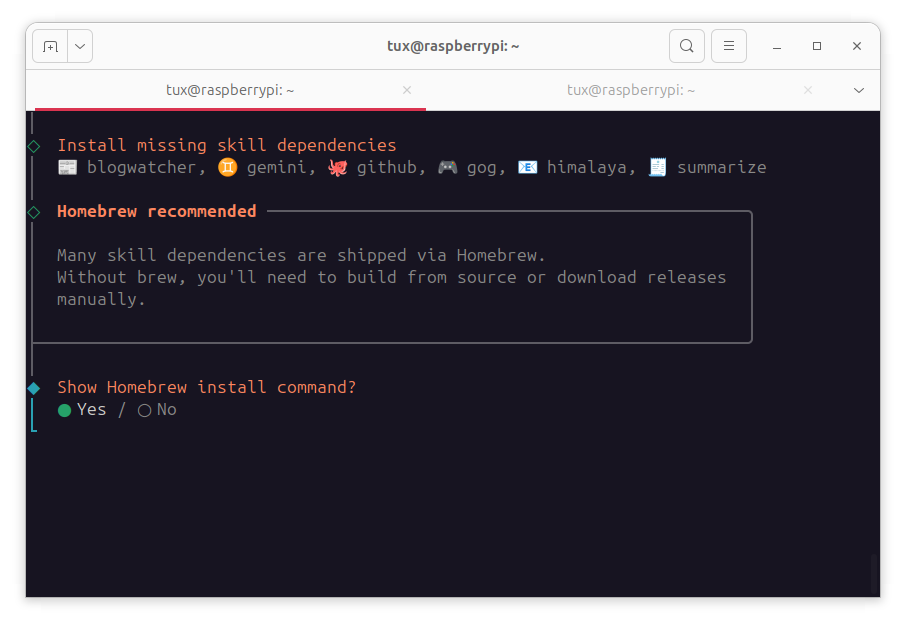
Also, install Homebrew
If you have API Keys of different services, you can start adding:
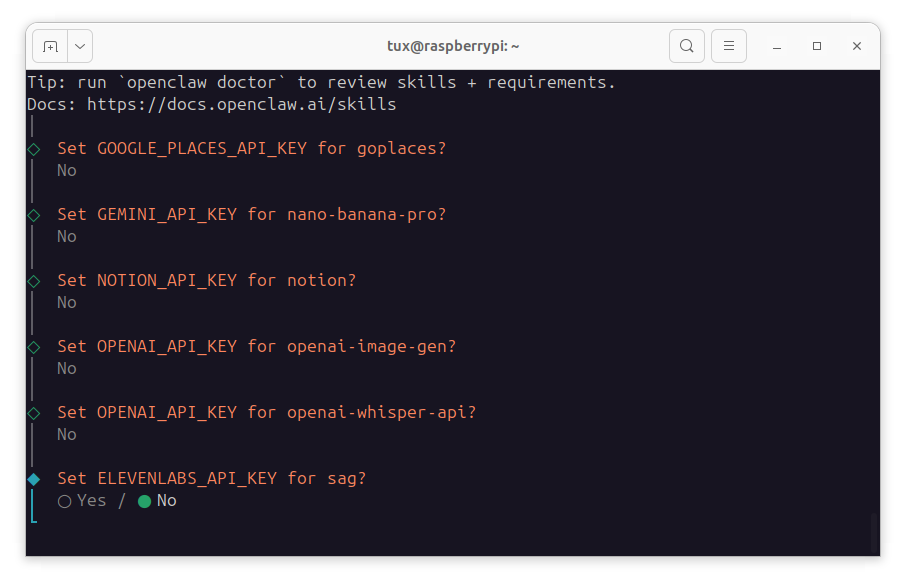
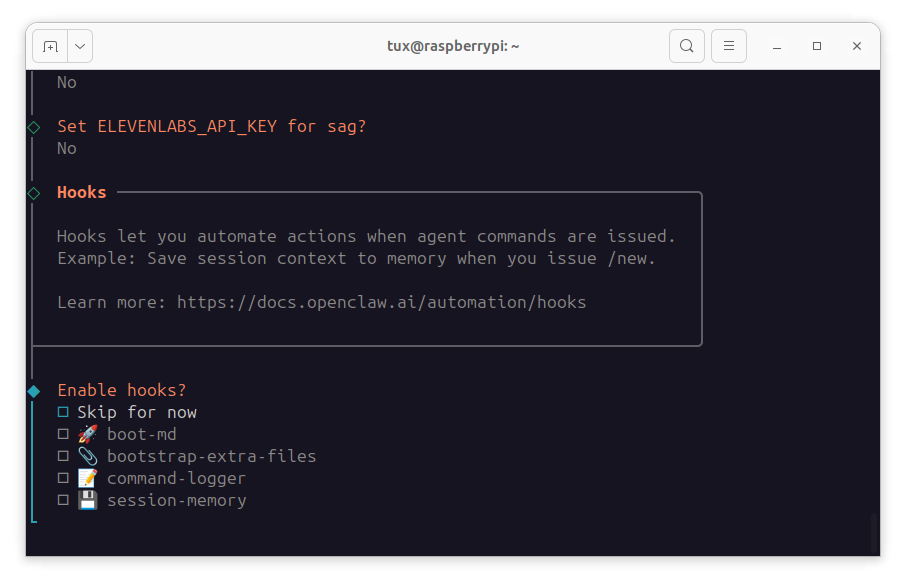
I skipped hooks for now:
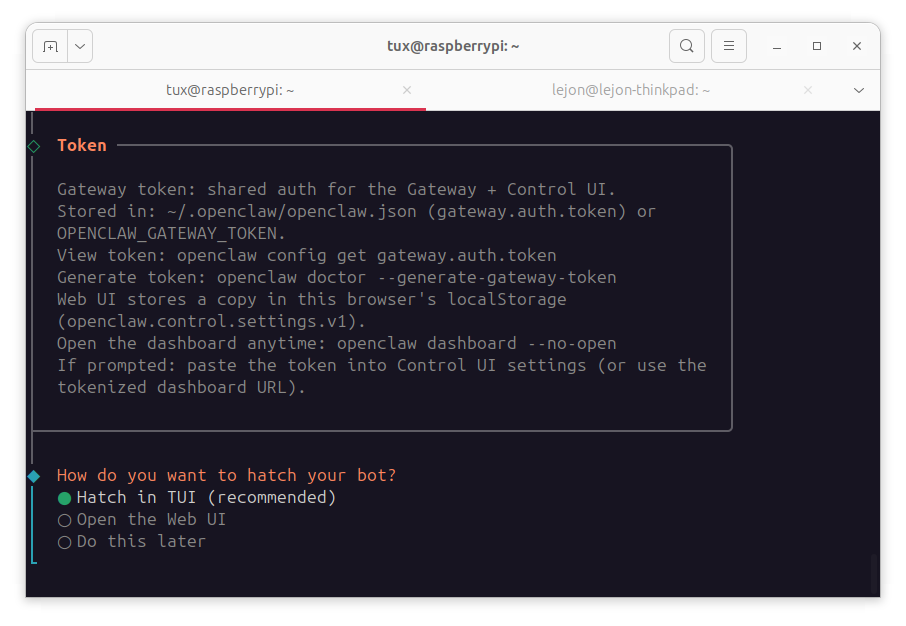
I am selecting Hatch in TUI as recommended:
When the installation is completed, you will get following response:
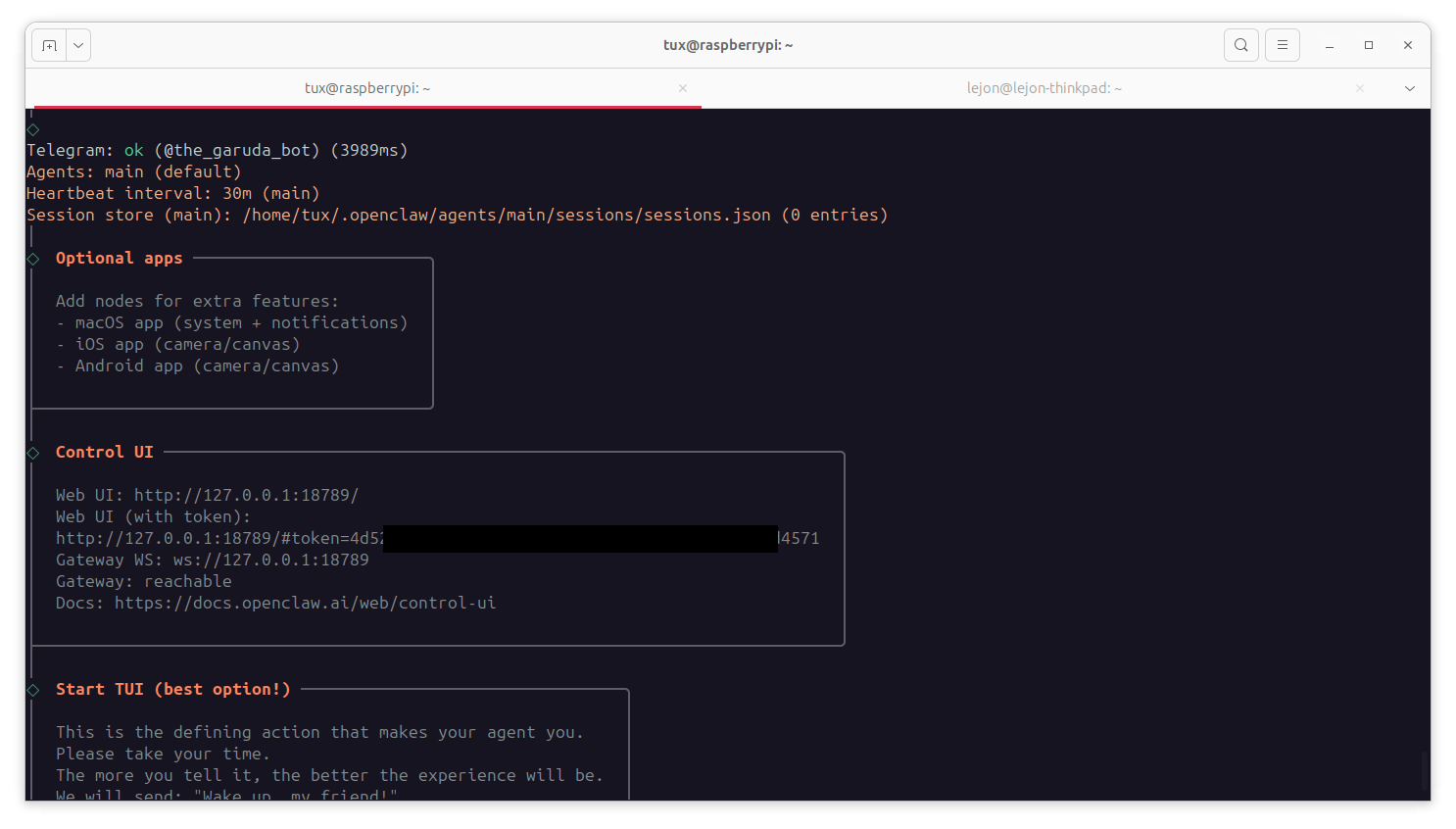
3. Using OpenClaw
You can start using OpenClaw in two ways:
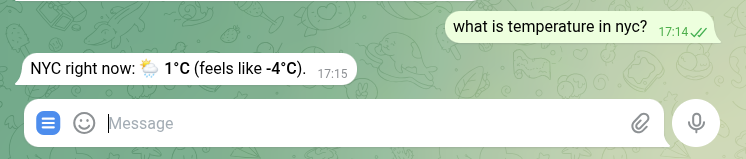
- Telegram (as our preferred communication channel)
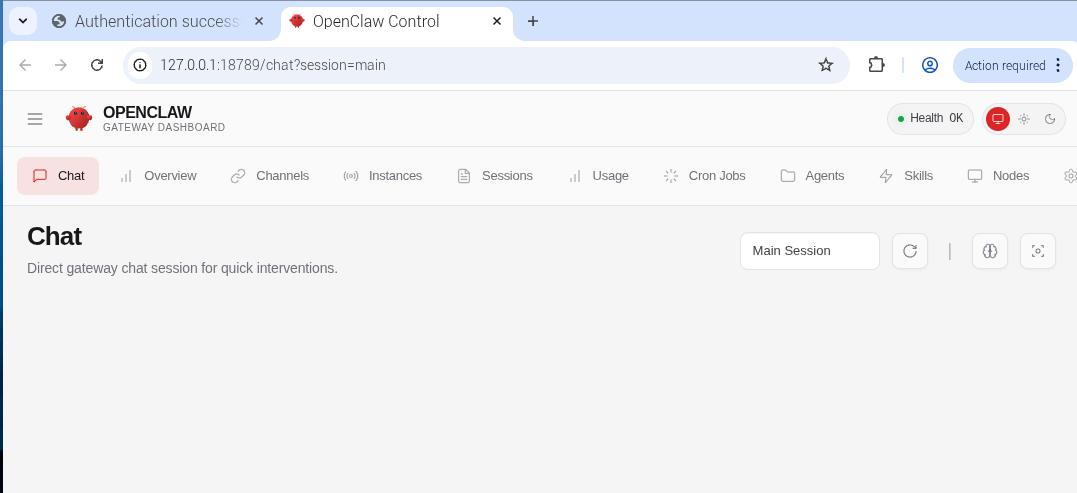
- Or web browser
4. Administration tasks
SSH Tunneling OpenClaw chat interface
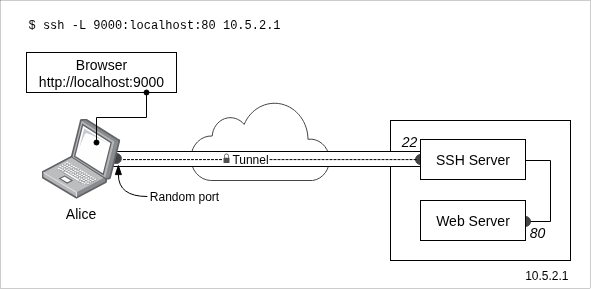
If you want to access OpenClaw Chat from another device on your local network, you can use SSH Tunneling.
This securely forwards the OpenClaw chat interface from the host machine to your local computer.
Run the following command:
ssh -L 8080:127.0.0.1:18789 username@192.168.1.200After connecting, open your browser and go to:
http://localhost:8080You’ll now be able to use OpenClaw Chat from a different computer — as long as it’s on the same network.